Custom agents for Grasshopper. Package your instructions and your own GH definitions into a profile, and Raven works like a specialist in your domain.
Context Profiles (Skills)
Generic AI gives generic Grasshopper. A context profile is how a facade consultancy, footwear manufacturer or a nautic designer turns Raven into their tool — with their conventions, their vocabulary and their reusable definitions baked in.
And because profiles are shareable, one expert in the office equips everyone else.
ℹ️ Private profiles need a paid plan. On the free tier you can use public and official profiles, but creating your own private profile — and sharing it inside your organisation — is a Professional / Enterprise feature.
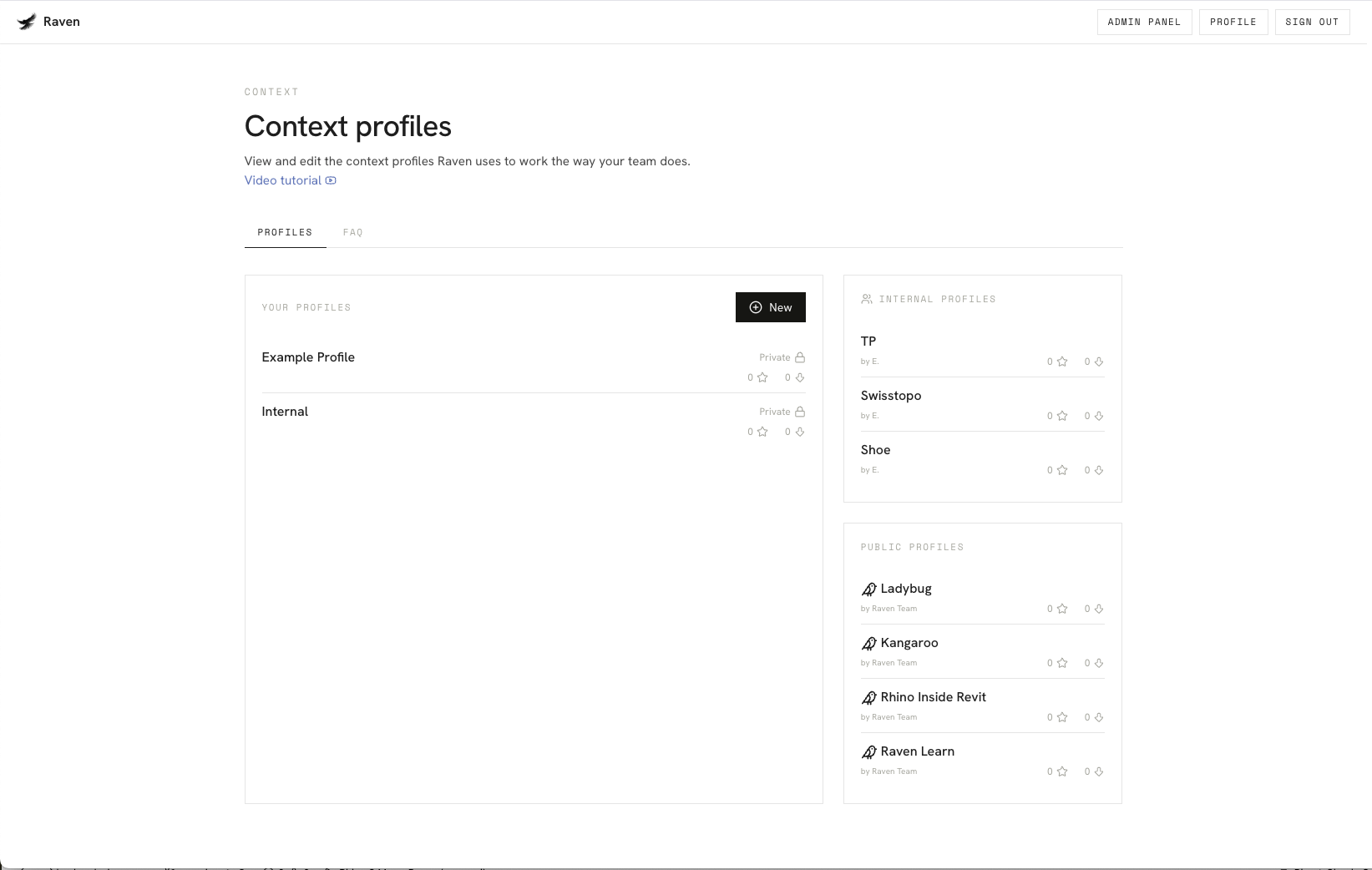
Editing context profiles
Context profiles can be edited in a web view. Either click the Edit Profiles button in Raven or log in at app.raven.build to access the editor.
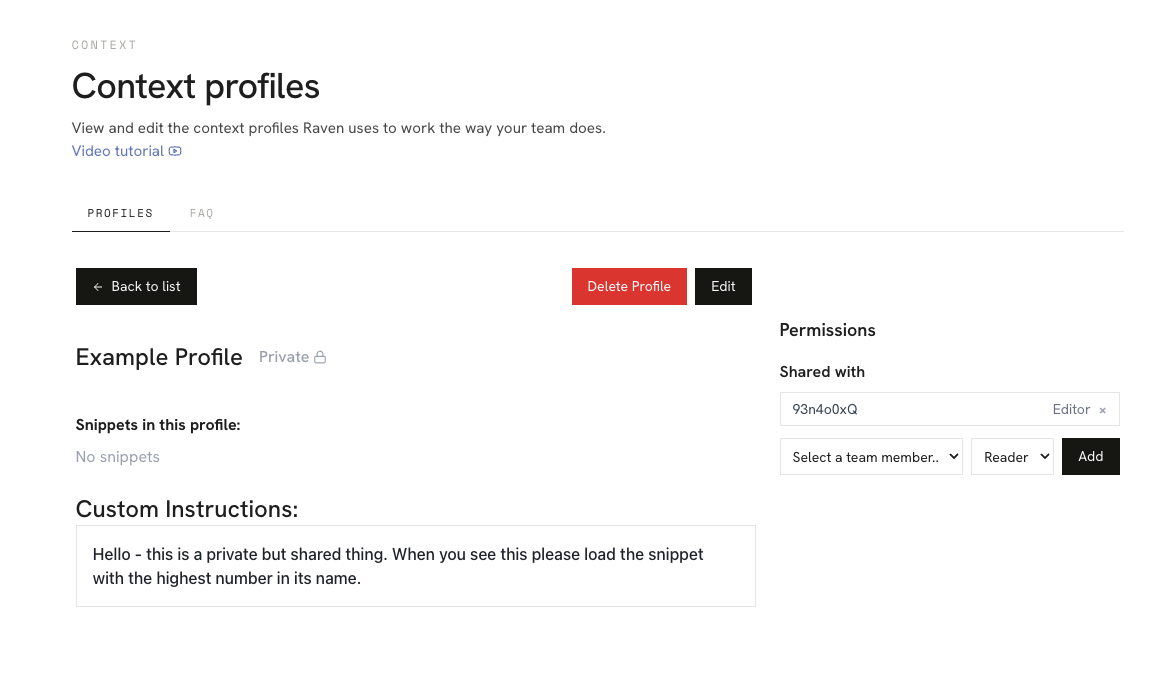
Each profile shows its snippets, its custom instructions, and — on the right — who it's
shared with. Edit opens it for changes, Back to list returns to your profiles.
1. Custom instructions
The heart of the profile. Think of it as onboarding a new colleague: what standards do they need to follow, what does your team call things, what's the house method for a given task.
2. Snippets — your definitions, reusable
Snippets are .ghx files you upload. Once uploaded to a profile Raven can drop it onto the canvas as a building block.
⚠️ The description is everything. Raven cannot see inside the
.ghxbefore loading it — it decides whether and how to use a snippet purely from the description you write. A snippet described as "Panelizes a surface" will be used far more accurately than one described as "panel script v3 final".
Snippets scale from a three-component helper to an entire office workflow.
3. Internal sharing
Professional and Enterprise users can share profiles internally. A profile stays Private — it never shows up in the public list — but you choose exactly who in your organisation can see it, and what they're allowed to do with it.
Under Permissions → Shared with, pick a colleague from the team dropdown, choose their role, and click Add.
| Role | Can |
|---|---|
| Reader | Use the profile in their chats — instructions and snippets included |
| Editor | Everything a Reader can, plus change the instructions and snippets |
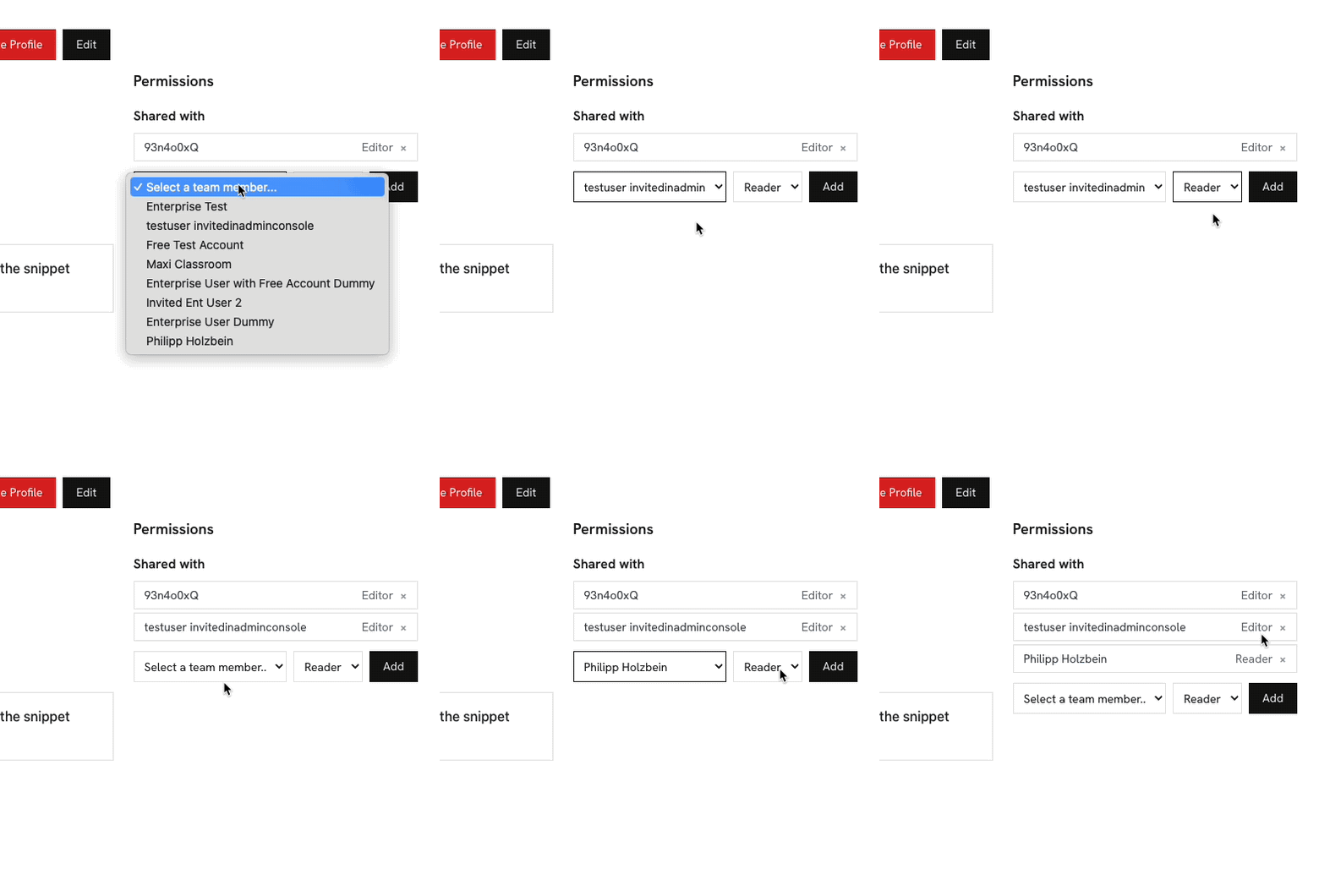
The dropdown is populated from your organisation's members, so there's nothing to copy or send — no links, no exports, no "which version is the current one". Everyone you add gets the live profile, and a change you make reaches them on their next message.
Each entry in the Shared with list carries its role and an × to revoke access again. Roles can be changed at any time without re-sharing.
This is the mechanism behind the office-expert argument: one person who knows the domain builds the profile once, shares it as Reader with the team, and everybody's Raven starts working to the house standard.
4. Using a profile
Activate it from the dropdown in Settings. From then on, every message in the chat runs with that profile's instructions and snippets available.
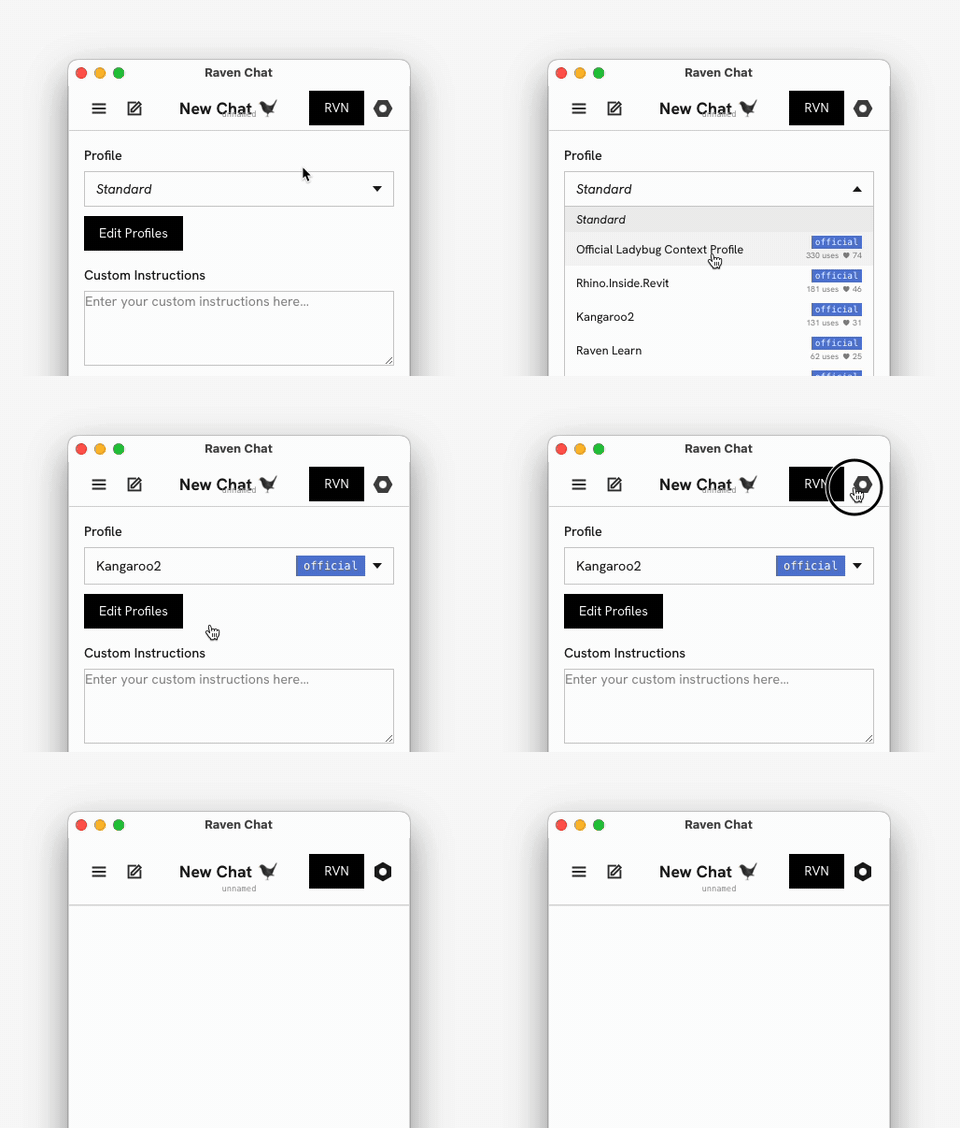
Raven can also switch profiles itself when you ask it to — "switch to the timber profile" — and it can list what's available. If it changes the profile during a turn, undoing that turn restores the previous profile too (see chat.md).
Talking points
- Context profiles = custom agents, without writing code.
- Snippets turn your existing IP into something the agent can deploy.
- Snippet descriptions are the interface — write them for Raven to read.
- Shareable: one expert configures, the whole office benefits.
- Public + official profiles mean value on day one.